If you prefer, you can also reset your iPhone using iTunes. This method is suitable for the situation that you may just give your iPhone to your family member or your friends.
Step 1: Connect your device to the computer.
Step 2: Open iTunes and Click the device tab from the top left corner.
Step 3: Click “Restore iPhone” in the Summary tab of iTunes.
Step 4: iTunes will ask if you’re ready to restore you iPhone, and click “Restore”.

Step 5: After it finished, iTunes will ask if you want to restore from backup, choose “Set up as a new iPhone” to start fresh with factory settings.

Nоtе: When the process done, iTunes will install the latest version of iOS software on you iPhone. Please note that the data just deleted still can be recovered, so if you need to erase them permanently you will need iMyFone Umate Pro for Windows or iMyFone Umate Pro for Mac to help you.
How to Reset iPhone to New in Settings
If you aren’t too familiar with iTunes, you can also reset your iPhone directly from the settings option on it. This method is just to reset your iPhone to new simply not completely. Here’s how:
Step 1: Click on Settings > General > Reset.
Step 2: Click on Erase All Content and Settings.
Step 3: Enter your Passcode or Apple ID.
Step 4: Confirm your choice to erase data.
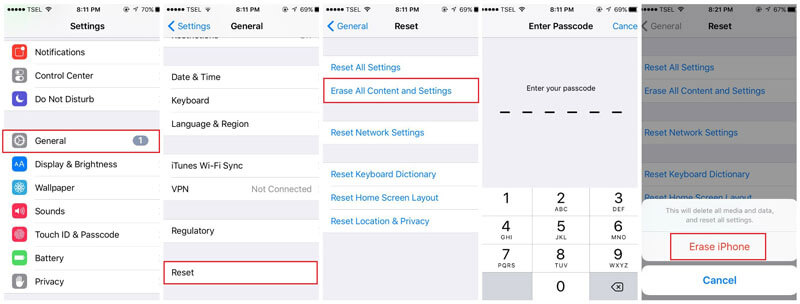
And it’s that simple. Just wait for your data to erase and follow the steps to set up your phone.
Note: Remember that this option resets your phone and erases your data, but nothing is permanently erased. This method is okay if you are going to continue using the phone yourself, but we wouldn’t recommend if you are going to sell or donate it.
How to Reset iPhone to New Remotely
If you haven’t reset your iPhone before you giving or donating it way, or even worse that you have lost your iPhone, or if your iPhone has been stolen, you can use iCloud to delete your data remotely. Here’s how:
Step 1: Log into iCloud in www.iCloud.com/#find and click Find iPhone.

Step 2: Click on “All Devices” and find the device you would like to erase.
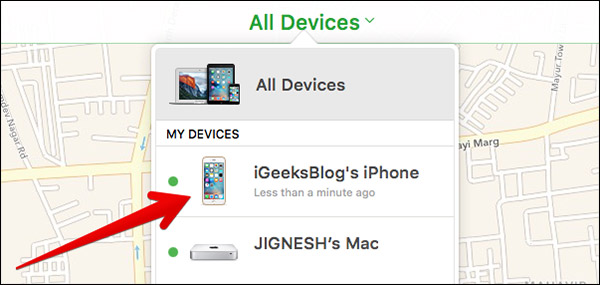
Step 3: Click Erase iPhone and wait for the process to finish.

Note to users: You can only use this option if your “Find My iPhone” option is turned on. For security purposes, we recommend always having this option turned on.
Do you like this story?
Sponsor Ads:
Sponsor
ads:
Gihosoft
iPhone Data Recovery Free
Free
iPhone Data Recovery Software for Windows/Mac
Recover
up to 12+ types of files, including contacts, SMS, photos, WhatsApp, Viber,
notes, etc.
Restore
lost data from iOS devices directly or from iTunes and iCloud backup
Recover
iPhone data lost due to iOS upgrade/jailbreak, accidental deletion, device lost
or broken
Support
all the latest iPhone, iPad and iPod Touch
Both
Free and Pro version.
If
you lost data after you updated to a new iPhone, you can always use Gihosoft iPhone Data Recovery to get the data back from the old iPhone or backup.You may
also like: iphonerecovery.com
With
Gihosoft Android Data Recovery, no longer afraid of data loss!
Gihosoft RePicvid Free Photo Recovery Software provides a free photo recovery software for windows to help
users recover the deleted or lost photo for free.
Jihosoft Android Data Recovery: the best Android Data Recovery software for Windows and
Mac to recover deleted contacts, messages, photos, videos, WhatsApp and etc
from Android devices.Tips:How to transfer messages from iPhone to iPhone
Jihosoft File Recovery:Recover deleted, Lost, formatted, or corrupted files from
PC, flash drive and memory card easily & safely
Gihosoft Free iPhone Data Recovery is a professional iPhone Data Recovery software to get back all your lost text message, photo, video, call history, note, contact and more from iPhone/iPad/iPod Touch. It offers a full solution to recover your lost data in different tough situations. Besides recovering data directly from iPhone, iPad and iPod touch, it also allows you to recover data from iCloud and iTunes backup files.


Ei kommentteja:
Lähetä kommentti